TIMESHEETS, RESOURCING, EXPENSES AND LEAVE
ACTIVATING YOUR ACCOUNT
https://ctmanagementgroup.projectworksapp.com/
To advise that you have made final timesheet/expense entries for the month, please fill in the following form: Projectworks Monthly Submission Confirmation
Please read the instructions below, and if you have any further questions please don’t hesitate to contact Brayden Dixon, Program Manager on +61 3 4250 9304 or braydend@ctman.com.au.
At CT Management Group we use a project management system called “Projectworks”. This system allows us to manage our projects and placements and resource allocation for those engagements. A large part of ensuring accuracy for our jobs is to enable Associates allocated to projects and placements to provide up to date timesheet hours, lodgement of expenses and notice of leave.
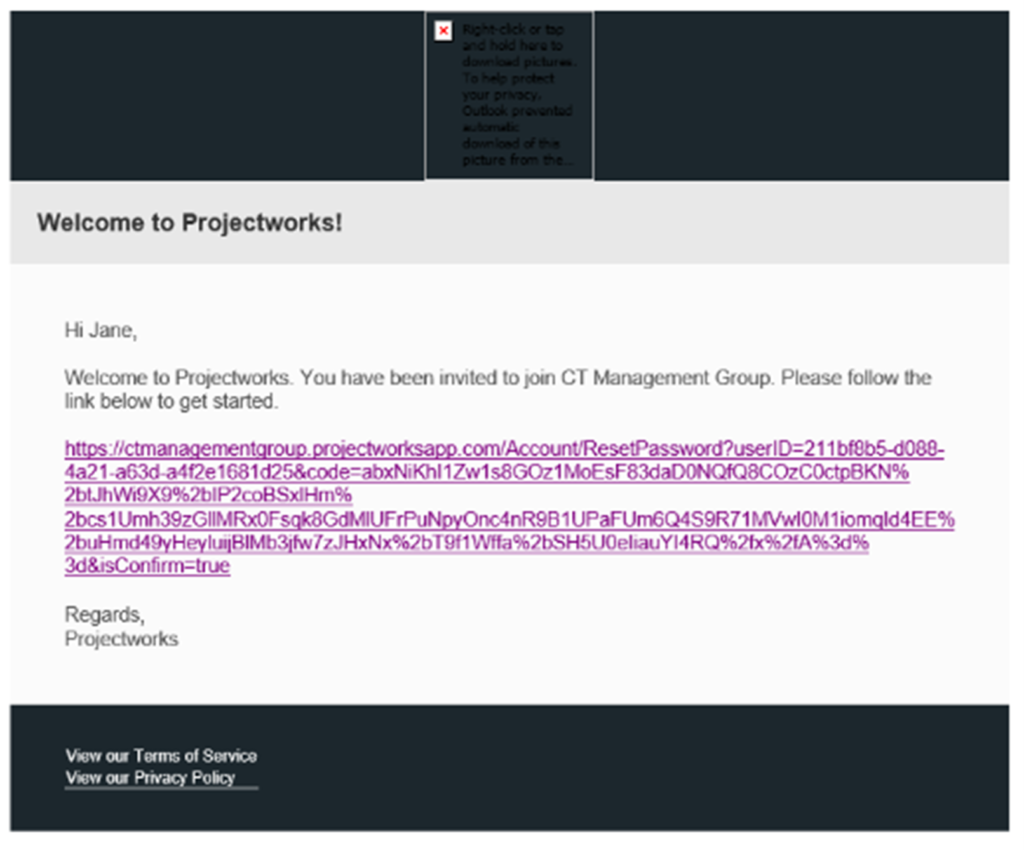
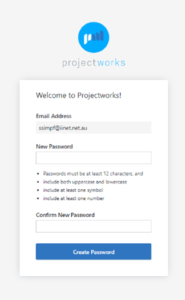
As we bring you onboard to Projectworks you will receive an email to your registered email address with CT Management Group from Projectworks with a link that will take you to a Projectworks welcome screen on your browser. This will request you to enter a new password for access to the program.
Once you have logged into Projectworks please save the page to your favourite’s toolbar as a bookmark for easy access on a regular basis.
INTRODUCTION
Associates who are on active projects or placements will be provided with access to log in to Projectworks to provide daily timesheet information for those jobs with CT Management Group.
The minimum requirement will be a daily entry of hours worked on any given job. If you are currently on multiple jobs all of those jobs will be listed on your profile in an easy-to-use timesheet screen.
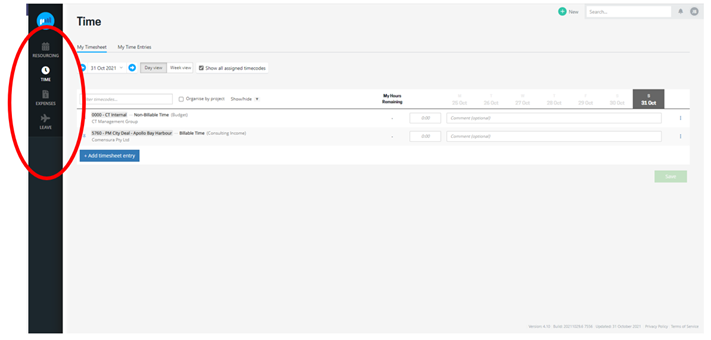
When you log into your account you will see the following screen. The left-hand menu provides you with 4 different screens to view information: RESOURCING, TIME, EXPENSES, LEAVE
RESOURCING
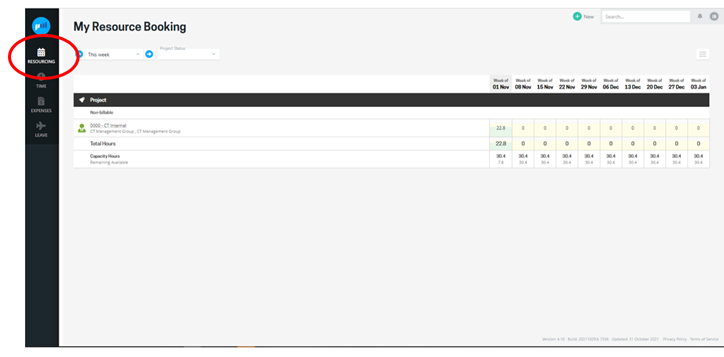
This view shows you a 10-week view of your weekly project resourcing allocations. Depending on your allocations you may see only 1 or multiple projects listed here along with your resourcing capacity hours and whether you are over or under resourced according to your provided capacity hours to CT Management Group.
If your registered capacity hours are incorrect, please email your project manager to update this information.
TIMESHEETS
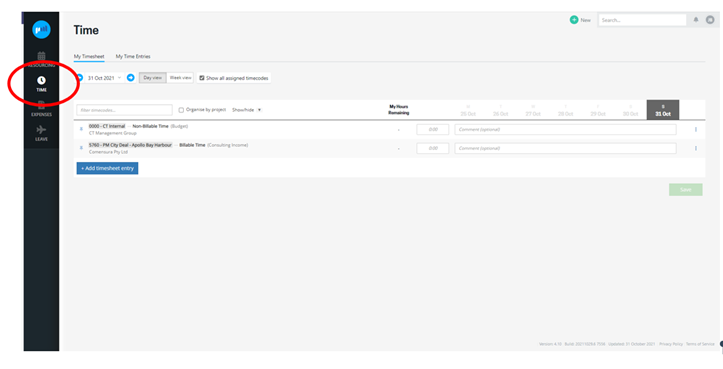
Timesheets are an important part of any services business and drive a lot of information – for many different people.
Your timesheet is your daily report, recording the activities you have worked on. It shouldn’t be difficult to complete – especially when done daily.
Updating your timesheets accurately and frequently will help your Project Manager keep track of progress and budget, as well as providing valuable input into multiple reports.
As timesheets are a key input into invoicing at the end of the month – timely and accurate completion is essential.
BEST PRACTICE
- Complete your timesheet every day (it is quicker and easier – and provides the best information to your project managers)
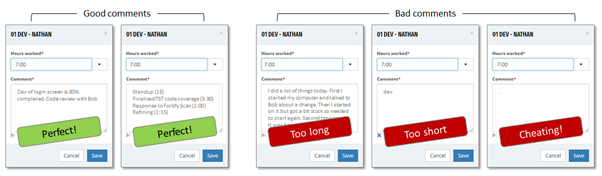
- Include a brief comment to support your time entry
- If in doubt on where to enter your time, ask your Project Manager
TIMESHEET OPTIONS
Timesheets operate in either a “day view” or “week view” to cater to different ways people work. There is also a targeted view for mobile phones, so it is easy to do your timesheet from anywhere.
DAY VIEW
- This is the best view for updating your timesheet throughout the day.
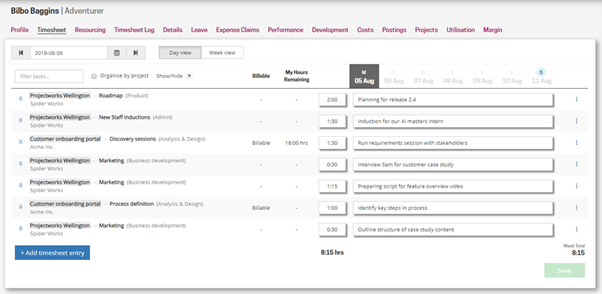
WEEK VIEW
- Good for viewing monthly commitments but preferred view would be daily for updating purposes
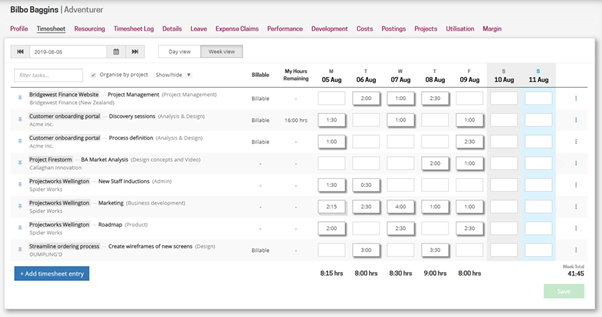
In both modes, the key concepts are the same, with the same set of tools available for managing your timesheet.
PINNING TIMECODES
Timecodes that you are resourced on and use often can be pinned so they are always on your timesheet.
You can either click the pin icon to pin (or unpin) a timecode or select “pin timecode” from the options to the right of the comment field.
Timecodes that are pinned will be shown at the top of your timesheet (in day or week mode) and be ordered by company and project. When you unpin a timecode, it will be shown in the relevant order.
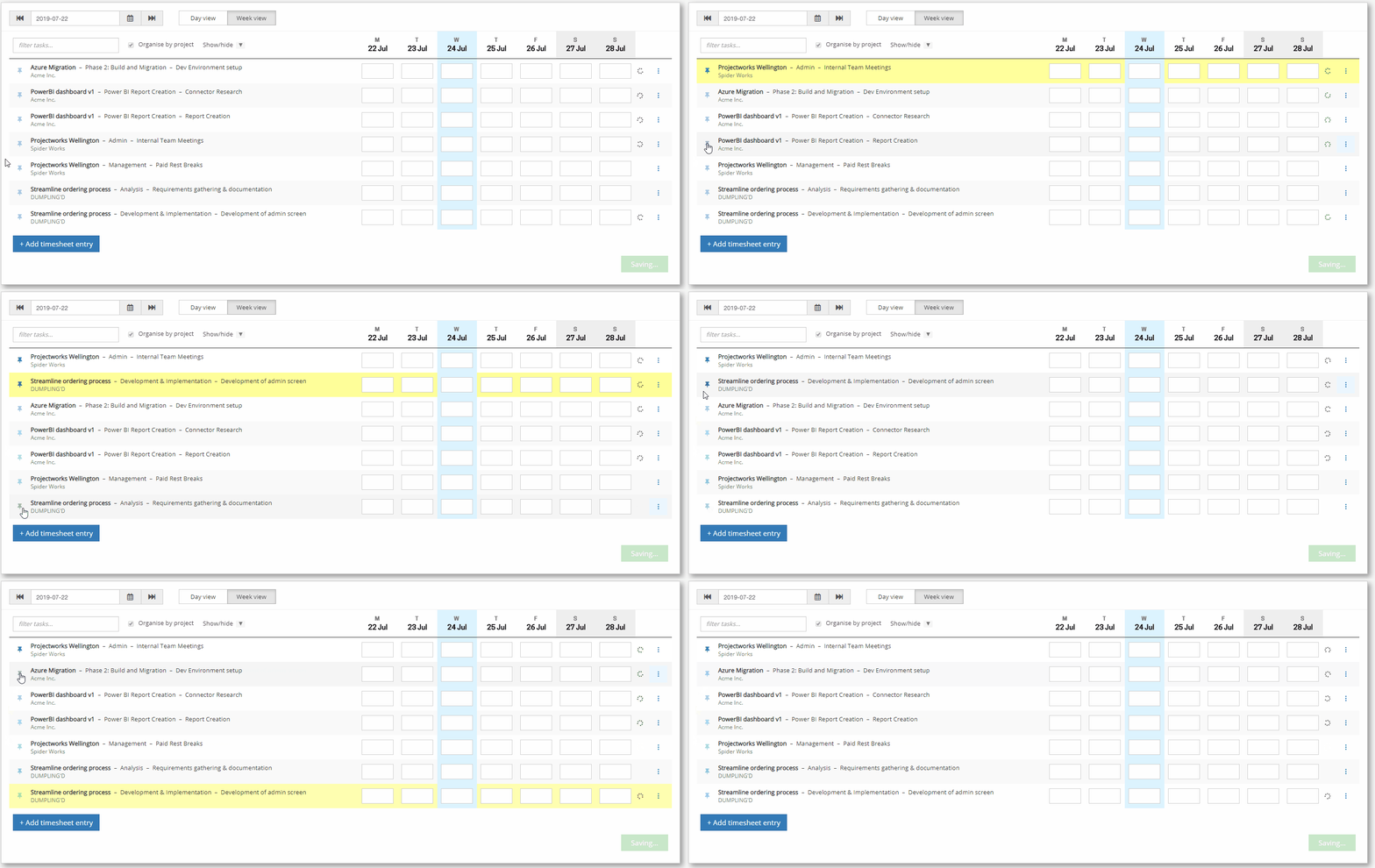
Pinning a timecode will put it at the top of your timesheet, unpinning it returns it to its ordered position.
ENTERING TIME
Projectworks allows for time to be entered down to the minute. There are four different ways you can enter time, all with the same result.
- Enter the time in minutes (eg 90)
- Enter the time in hours and minutes (eg 1:30)
- Enter the time in hours as decimals (eg (1.5)
- Use the arrow to the right to select a time value in increments of 15 minutes (eg 1:30)
In this example, using any method the entry will be saved and shown on your timesheet as 1:30
INCLUDING COMMENTS
EDITING ENTRIES ON YOUR TIMESHEET
- the timecode is still active
- the timecode is still available for use on that date (the Project Manager may have changed the date range)
- the timesheet entry hasn’t been included on an invoice
- you are still assigned to the timecode (the Project Manager may have removed you)
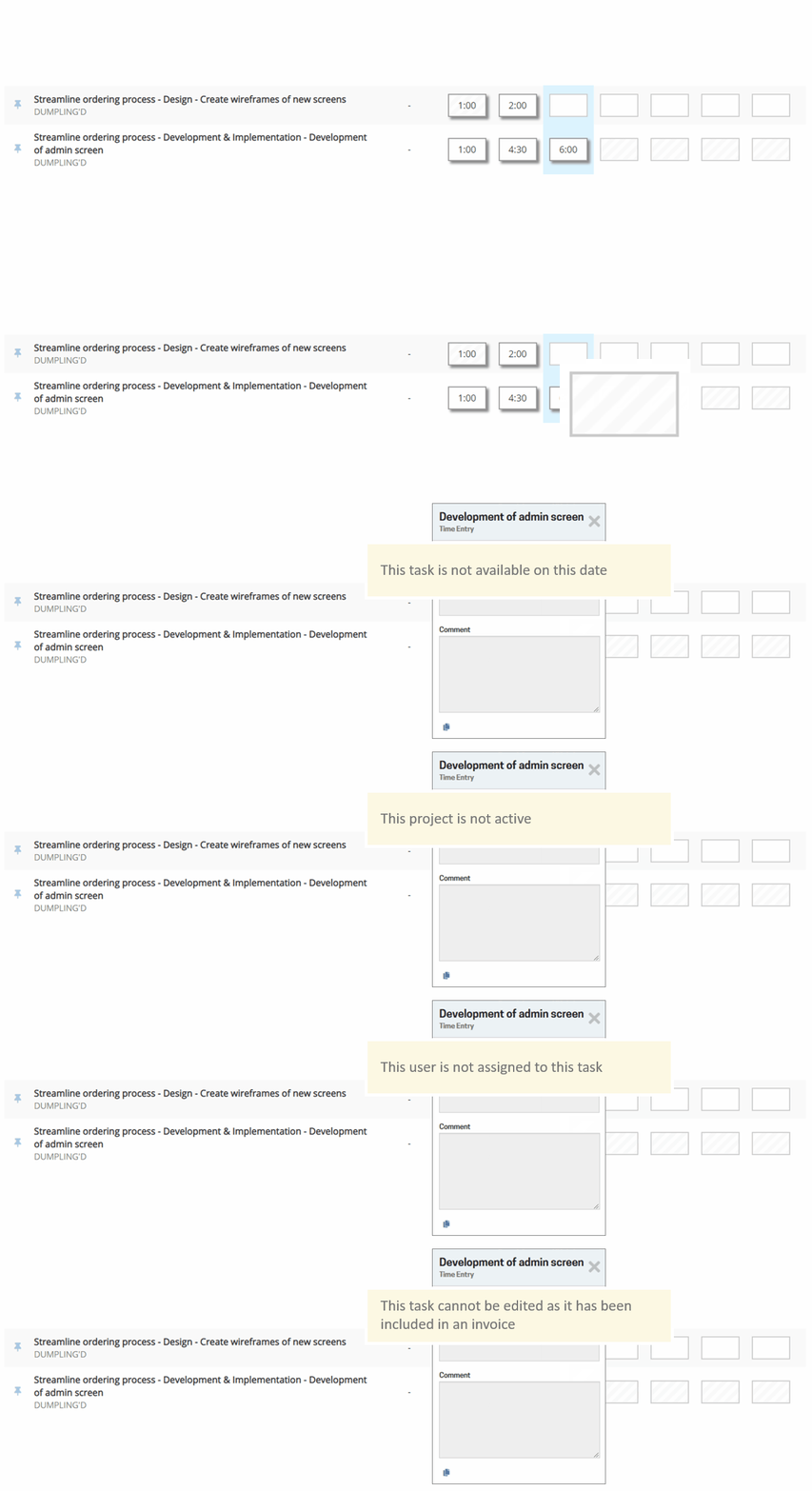
If you cannot update or enter information on your timesheet, please contact your Project Manager directly or call Contracts & Tendering on 1300 500 932.
NAVIGATING YOUR TIMESHEET
There are different ways you can move through the days of your timesheet
- Use the date picker and select a date (this is helpful if you want to change the week you are looking at)
- Use the arrows by the date picker to move back or forward (by day in day view, or by week in week view)
- In day view click a day in the header row
COLUMNS SHOWING
The following columns provide supporting information:
- Billable: Shows whether the timecode is in a Billable project
- My hours remaining: Shows the total hours you have left on the timecode. This is calculated as the hours you have been allocated, less the total hours you have entered in your timesheet for this timecode.
USING YOUR TIMESHEET ON YOUR PHONE
There is a specific timesheet view used on mobile phones. The timesheet is presented for a single day and operates in day view mode, with the differences being that you are unable to see or enter a timecode multiple times for a day from your phone, pin/unpin, or remove timecodes.
EXPENSES

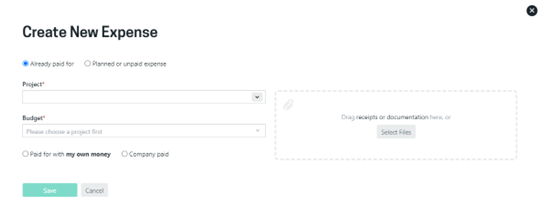
PROJECT
Type the project number that has been provided to you to allocate your expenses to that job.
BUDGET
There is the dropdown menu ‘Budget’. CT Management Group project managers will set expense budgets for you to use depending on how they will be tracking the jobs expenses.
- g. The most common you may see are ‘Travel Expenses’, ‘Accommodation Expenses’, or the project manager may decide to have all of your expense in one budget.
PAID FOR WITH MY OWN MONEY OR COMPANY PAID
You will select Paid for with my own money.
JOB NO. & ORGANISATION
Please ignore this step, for internal use only.
COMMENT
The next option is a requirement for a ‘Comment’, for any information that supports the expense amount.
PURCHASE DATE
Please select date of purchase.
TYPE OF EXPENSE
Select the type of expense. The type of expense you can claim for the project will be determined by the information provided in your appointment letter.
PRICE – CAN BE ENTERED IN TWO DIFFERENT WAYS
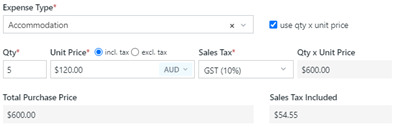
Option 1: Qty x unit price – (tick the box use qty x unit price)
- For Accommodation expenses, a short calculation of nights x rate (usually Accommodation receipts will be inc. GST)
- g. 5 nights @ $120 = $600
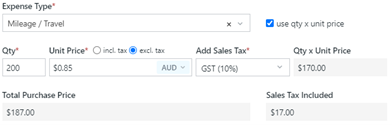
- For Mileage expenses by km’s x .85c per km (usually mileage is recorded ex. GST)
- g., 200kms @ .85c = $170
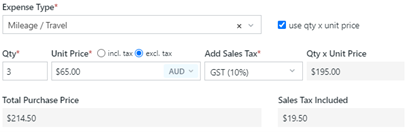
- For Fixed Travel amounts, (number of trips x price per trip ex. GST)
- g., 3 trips @ $65 = $195
Option 2: Fixed price
- Airfare/Train/Bus/Parking
- Car Hire & Fuel
- Miscellaneous
- A short calculation needs to be added to the comment section.
- E.g., Airfare on 12th October MELB – BRIS.
- E.g., Fuel paid on 12th October.
RECEIPT
Please note, you must provide a receipt or documentation on the right side for each expense entry.
For travel/mileage claims, please attach a copy of ‘Annexure A’ of your appointment letter, or the entire appointment letter (whichever is easiest).
Once you submit, finance will review at the end of the month ready for the creation of your Recipient Created Tax invoices.
LEAVE NOTIFICATION
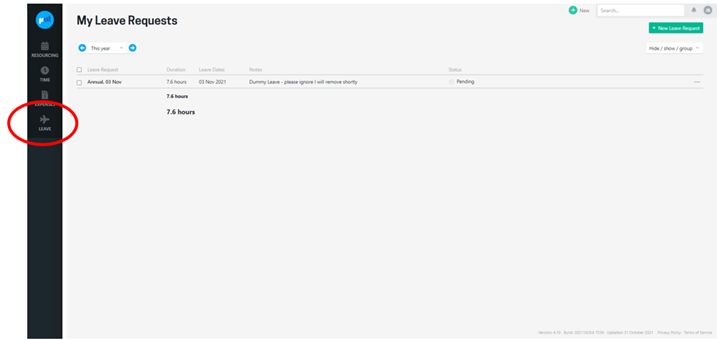
Our primary purpose for asking you to provide Leave information is to ensure that our resourcing allocations are accurate and show when you are available for work and is not dependent on you being currently active on a project or placement.
Currently our settings for Associates are based on advised availability and capacity of hours per week available to work. Keeping leave records accurate will provide us with maximum capability to resource our projects and placements.
Leave is submitted from your leave screen. You can get to it by clicking “My leave” from the quick menu (your initials top right), or by using the menu in your own workbench.
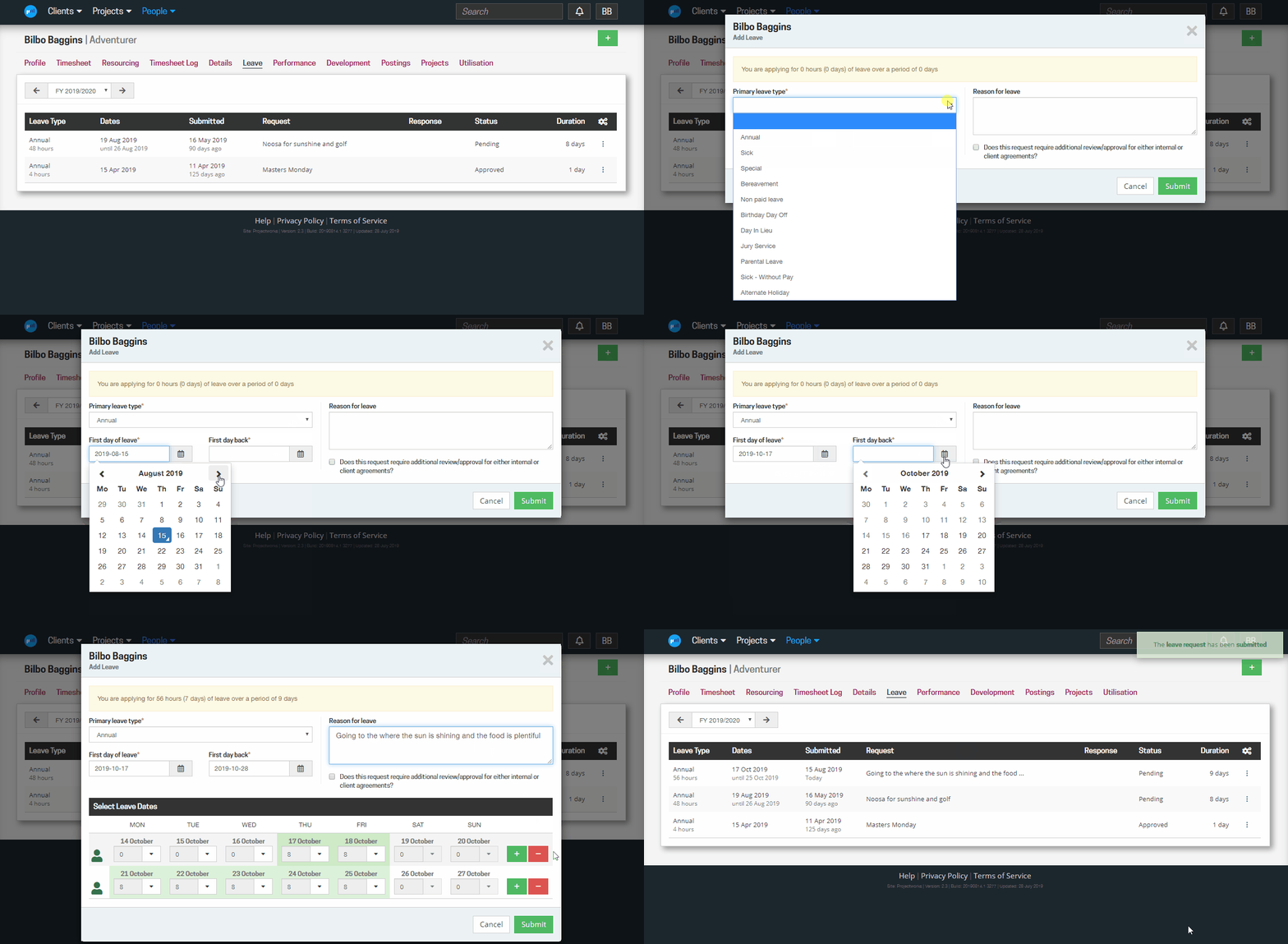
Clicking Add Leave will open the Add Leave window. To submit a leave notice you need to select the primary leave type (Annual Leave) will be the only reason that Associates need to select, you do not need to enter a reason for leave and select the first day of leave and your first day back at work.
- The dates will be used to populate your leave submission with your normal allocated hours or work (you can reduce the hours if taking less than a full day). The default hours for Associates is 8 hours per day unless otherwise arranged when on a project or placement.
- The primary leave type will be used for each day of leave.
- Leave submissions will be ticked off and automatically added to your calendar through our Administrators and will not require extra review.
You can then submit your leave submission and we will then consider that as notified and apply that to your calendar of availability.
HOW MANY HOURS PER DAY OF LEAVE DO YOU APPLY FOR?
The amount of leave you need to apply for on a day is based on the structure of your workweek. Most Associates will be based on an 8 hours per day workday and previous notification of weekly capacity hours. However, if your work week structure is different, the amount of leave you need to take may be different.
- if your work arrangement is for 4 hours per day for 3 days, it will be populated with 4 hours per day over 3 days.
CHANGING THE HOURS OF LEAVE
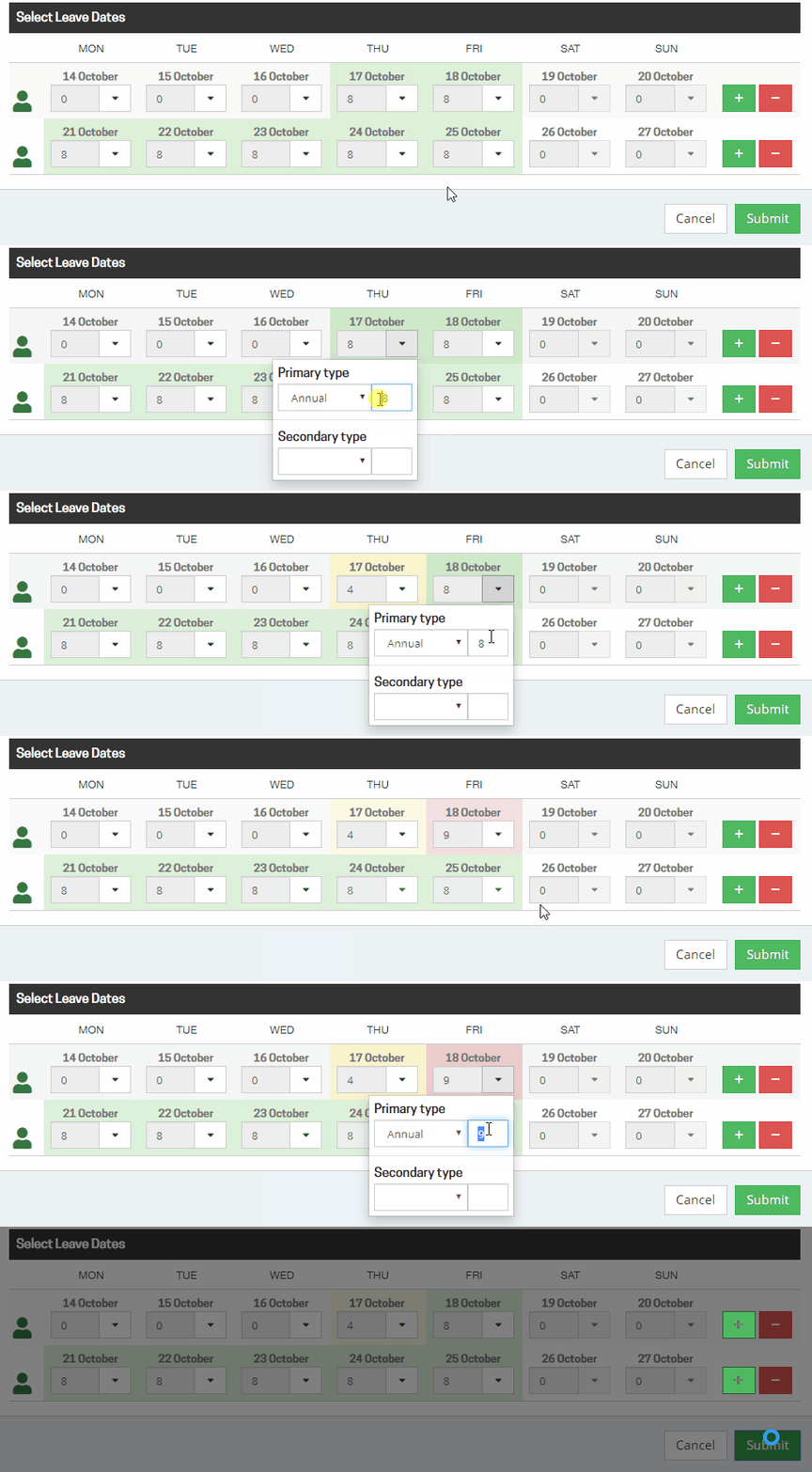
By default, the leave submission will be created for a full day of leave each day, based on your workweek structure. If you are taking less than a full day of leave you can change it. For example, it may have defaulted to taking 8 hours a day for a full 2 weeks, but you are working for half a day on the first day of leave so you only need to apply for 4 hours on that day…
To change the hours on a day, click the arrow and edit the number of hours
- If you change it to a value less than your capacity for the day, the day will be shaded yellow to signify it is a part-day of leave.
- If you change it to a value that is greater than your capacity for the day will be shaded pink (you shouldn’t apply for leave in excess of your normal hours)
APPLYING FOR MULTIPLE TYPES OF LEAVE IN ONE REQUEST
Not applicable to Associates time structures.
EXISTING LEAVE
If you have previously notified CT Management Group of intended leave prior to this new system these notified leave dates should be showing on your calendar and will be shown as “greyed out” and you do not need to submit leave on those days. If you hover over the date, it will show you what the leave is e.g. “Annual”.
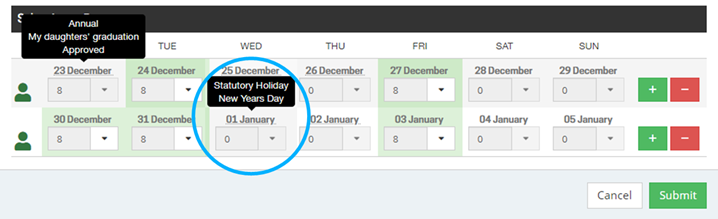
Note: To make changes to an existing leave request you need to edit the original request and resubmit it.
FAQ – GENERAL QUESTIONS
Why does my timesheet have no timecodes on it?
Timesheets start empty unless you have pinned timecodes. If all your pinned timecodes are no longer available or not valid for the date you are viewing your timesheet will be empty. You will need to add the timecodes again – and pin them if you want them to stay on your timesheet.
TIP: If you used the timecode the previous day/week go to that date and pin the timecode.
How do I keep timecodes I use often on my timesheet?
Timecodes that use you use often can be pinned to your timesheet and be there each day/week for you. You can pin the timecode by clicking the pin icon to the left of the timecode name or selecting “pin timecode” from the button to the right of the timecode name.
How do I add a timecode to my timesheet?
When you login to your timesheet you will see your list of jobs that you have been resourced on. If you have time allocated for the current week of the timesheet your project will always be available for timesheet entry.
Remember to pin the timecode if you will be using it for a while or often. You should not need to add a timecode by searching for the project if you have pinned the project to your timesheet. (See above for instructions to pin your timecodes)
Do I need an app to enter my timesheet from my phone?
No, you don’t. Projectworks is a responsive website which means it works well on your phone. Use your phone’s browser to open Projectworks and navigate to your timesheet (save the URL as a favourite!).
Is there a timer which will track how long I work on a timecode?
No. There is currently no timer integrated with the timesheets.
What format do I enter time in?
All time is stored in minutes, but you can enter it in three different formats. You can either enter the number of minutes (eg 90), hours and minutes (eg 1:30) or hours as decimals (eg 1.5).
All of these will be saved and shown on your timesheet as 1:30. If you click the arrow to the right of the time entry cell there are time values in 15-minute increments which you can select from.
Can I change between the day and week mode?
Yes, you can. You can change between the week and day view whenever you want, and as often as you want. You can try both options and see which one suits you best. You might even find that you switch between the modes depending on what you are working on at any time.
Why isn’t a timecode showing on my timesheet anymore?
There are a lot of reasons a timecode isn’t showing on your timesheet. The project or timecode may have been closed, the timecode end date has passed, or the timecode start date has been moved to be in the future. Or you could have been removed from the timecode by the Project Manager.
Remember, if a timecode isn’t pinned it won’t show on your timesheet unless it has time entered for that day/week. Likewise, a timecode will always show if it does have time entered for that day/week. If the timecode you need is no longer showing, navigate back to a date when the timesheet was showing and pin the timecode. Then navigate forward to the current date and the timecode will be pinned for time entry on that week.
Can I record time against the same time more than once in a day?
Yes, you can, but this is only available in the day view. If you are using week view, you can increase the amount of time you have entered against a timecode and add extra detail into your comment if you choose.
Can I see how many hours I have worked on a timecode this week?
This information isn’t shown on your timesheet.
Why do holidays and leave not show in my timesheet?
As an Associate you may be required to work from home on public holidays by arrangement with the Client/Council on projects. Public Holidays do not show on your timesheets as Public Holiday rates are not paid to Associates.
Only your notified leave applications that have been entered in ProjectWorks are automatically represented in your timesheet. This is so your day/week is complete and accurate.
This project has no active expense budgets to assign this expense to. What should I do?
Please notify your project manager so that they can assign the job expense budget lines required.